


ViWizard Releases Streaming Audio Recorder V3.0.0 with New Podcast and Radio Support
HONG KONG, August 28, 2026 — ViWizard has
released ViWizard Streaming Audio Recorder V3.0.0, an upgraded
All-in-One streaming audio management tool that adds free podcast recording and
downloading support. The update expands the software beyond streaming audio
downloads, allowing users to collect podcasts and radio content from the
built-in archive alongside other supported audio sources.
What’s new in ViWizard Streaming Audio Recorder
V3.0.0?
Available
for Windows and macOS, ViWizard Streaming Audio Recorder combines audio
conversion and recording capabilities to manage digital audio content from
multiple sources. It includes converters for 11 supported platforms, such as
Spotify, Apple Music, and YouTube Music, to convert platform-based content and
an audio recording tool to capture streaming audio from platforms, websites,
and applications. The release comes as more listeners seek free audio resources
for entertainment, education, and information with offline access.
Key Features of ViWizard Streaming Audio Recorder
V3.0.0:
•
Download podcasts and access radio content
from the built-in archive;
•
Manage streaming audio from 11 popular
platforms in one toolkit;
•
Convert audio contents into MP3, WAV,
FLAC, AIFF, M4A, and M4B formats;
•
Record streaming audio from platforms,
websites, and applications;
•
Customize audio output settings for
different playback needs;
•
Organize streaming audio content in one
centralized library.
How does the new podcast and radio support work?
With
podcast and radio archive support, users can explore content across categories
including entertainment, current events, professional topics, music,
discussions, and live programs. Resources such as BBC World Service provide
additional audio options that can be managed alongside content captured from
other platforms.
ViWizard
Streaming Audio Recorder separates podcast saving and radio recording based on
the nature of each content type. Podcasts can be saved directly in supported
formats, including MP3, WAV, FLAC, AIFF, M4A, and M4B, while radio stations
require real-time recording through ViWizard Audio Capture support. Also
available as a standalone tool in the “Tools” section, ViWizard Audio Capture
records system audio from platforms, websites, and applications. Together,
ViWizard Streaming Audio Recorder offers a broader solution for users looking
to organize streaming audio content in one place.
Steps to Save Podcasts from ViWizard Streaming Audio Recorder
- Download
and install ViWizard Streaming Audio Recorder on your computer.
The program supports both Windows and macOS. Once installed, launch the
software to access the built-in audio resources and start saving podcasts.
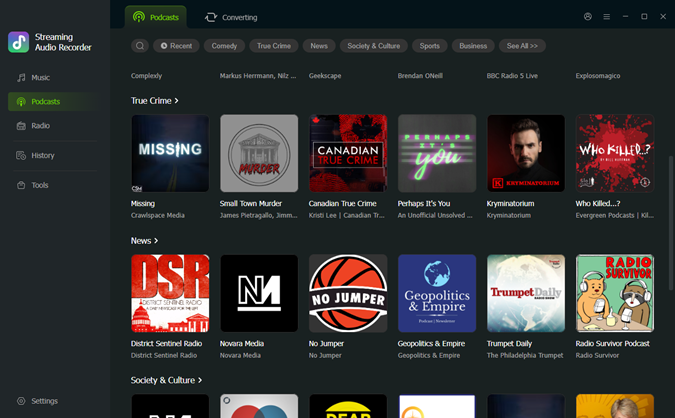
- Open
the Podcast section from the built-in archive and browse available shows.
You can explore categories including comedy, true crime, news, society and
culture, sports, business, and more. To find a specific episode, click "See
All" and search with the podcast title or related information.
- Select
a podcast episode and open its details page. Review the
episode information before downloading to make sure you choose the correct
content.
- Set
the output format and adjust output settings before saving the file.
Click Settings in the lower-left corner, go to the Podcasts
section, and select a format under "Output Format",
including MP3, WAV, FLAC, AIFF, M4A, and M4B. You can also customize the
audio channel, bitrate, sample rate, and output folder.
- Download
the podcast episode. Since podcasts are pre-recorded
content, ViWizard can process and save episodes directly without real-time
recording. You can download all episodes using the "Download
All" button or save individual episodes with the download icon.
- Wait
for ViWizard to complete the process. Once
finished, the saved files will appear in the output folder, where you can
listen offline or organize them with your other audio collections.
Steps to Record Radio from ViWizard Streaming Audio
Recorder
- Download
and install ViWizard Streaming Audio Recorder on your computer.
After opening the program, you can access the built-in radio archive or
use the recording feature to capture audio from online sources.
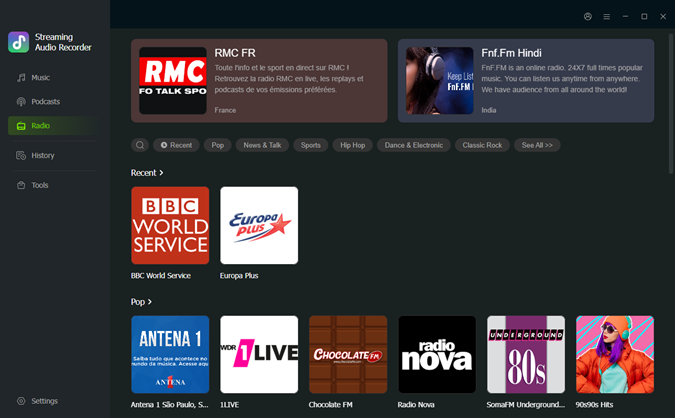
- Open
the Radio section and browse available stations by genre.
You can find radio content across categories including pop, news and talk,
sports, hip hop, dance and electronic, classic rock, and more.
- Select
a radio station and start the live stream. Since radio
broadcasts in real time, ViWizard captures the stream while it plays. The
recording feature can capture audio from platforms, websites, and
applications, allowing you to save live radio programs.
- Set
the output format and customize recording settings before saving the file.
Click Settings in the lower-left corner, go to the Radio
section, and select a format under "Output Format",
including MP3, WAV, FLAC, AIFF, M4A, and M4B. You can also adjust settings
such as "Auto-play radio when recording starts,"
"Auto-split file every xxx minutes," and "Auto-stop
recording after xxx minutes."
- Start
recording the radio content. Open your preferred station,
click the Record icon at the bottom, and let ViWizard capture the
radio stream while you continue listening.
- Stop
or pause the recording when finished. You can
pause or stop recording at any time, while the radio station continues
playing. After recording, review the saved audio file before further
management.
- Find
your recorded radio files in the output folder.
You can listen to the saved recordings offline and organize them with
other streaming audio content captured through ViWizard.
For
more information, visit the product page: https://www.viwizard.com/streaming-audio-recorder/. In this video guide, you can see how to use it.
“With
the evolution of digital audio consumption, we have developed ViWizard
Streaming Audio Recorder as an integrated audio toolkit that combines music
conversion, audio recording, and media management features across platforms,”
said Adam Gorden, Marketing Manager at ViWizard. “Our goal is to bring audio
capture, conversion, and management features together in a single solution to
help users organize and manage their streaming audio content.”
About ViWizard
ViWizard
develops digital media solutions that help users overcome challenges related to
platform restrictions, format compatibility, and device limitations. With
expertise in media conversion and processing, ViWizard creates practical tools
that help users access, manage, and enjoy their favorite content across
different platforms and formats.
YouTube:
https://www.youtube.com/@viwzard
Facebook:
https://www.facebook.com/viwizardsoft/
Twitter:
https://twitter.com/viwizard_soft
Author: Admin <leticia@viwizard.com>
News Wire



No comments